SWS (Seneye Web Server) Instructions (English)
Table of contents
Combined revision comparison
...
1) Get monitoring in 5 easy steps!
Take your slide out of the packaging and soak slide in the water you are going to monitorSOAK YOUR SLIDE for 24 hours for freshwater tanks and 48 hours for saltwater tanks.
DO NOT SOAK YOUR SLIDE IN TAP WATER OR RO Please Note: Do not put your slide in tap or RO water, use a cup of your tank/pond water. WATER
2) Set up your Seneye Web Server (SWSSetupyourSWS (detailed instructions below)
3) Connect your Seneye USB Device (SUD)
4) Insert and activate slide. Detailed instructions: Insert and Activate Slide
Start monitoring!!
instructions.
...
IF YOU HAVE PURCHASED ANY PART OF THE SYSTEM 2nd HAND PLEASE CONTACT US BEFORE ATTEMPTING THE SETUP
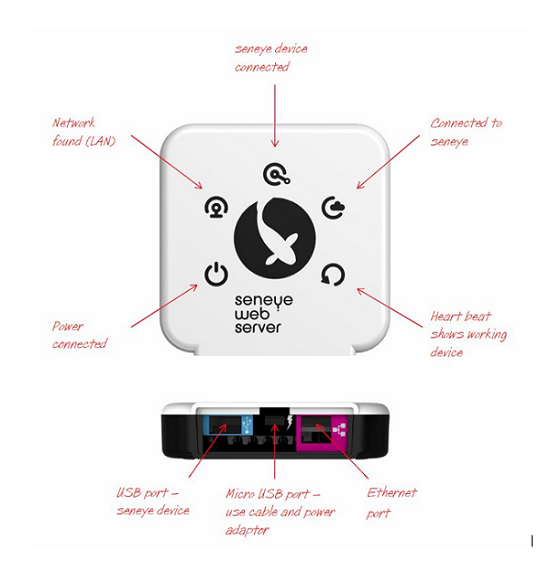
Stage 1 - Creating your seneye.me account
If you already have a seneye Click here to account please proceed to stage 2.
create a If you have not yet made a Seneye account, please do so by following the link below:
seneye.meaccountwww.seneye.me.
You will need to use the E-mail address that you would like your alerts sent to.
Once you have created your account, please return to this page to continue setup.
p.s - Ignore the section in the welcome email that mentions downloading the Seneye Connect Application as this is for our users setting up with a PC
...
Stage 2 - Registering the SWS to your account
Click here to register your Seneye Web Now you have created your Seneye account, please click the link below to register your SWS.
Serverhttp://my.sws.li
PIN and IDYou will be asked for your E-mail address, password, and the details that are on the sticker on the SWS packaging. An EXAMPLEexample of this is shown below:
Please note that O is the letter O and not the number 0 in the ID
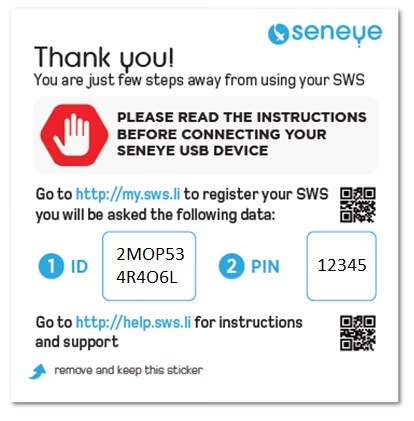
If you do not have this sticker or have lost it, please remove the back cover of your SWS by pressing in the clips on either side. Once the back is removed, you will find a label containing the ID and PIN ;)
Stage 3 - Connecting the SWS to your routerLocal Area Network
...
DoYou must connect the SUD directly to the SWS and not use any form of extension leads as the SUD will not communicate correctly.
...
If you are using your SUD in saltwater you will need to check the Marine Tick box for your SUD so that it can adjust pH readings accordingly. If you are using your SUD in freshwater you do not need to make this adjustment and can skip ahead to Stage 7.
Once your SUD has been connected to your SWS, and the firmware has been updated if it needs to be, you can check the Marine Tick box using the Seneye Web Server's GUI.
...
You can always uncheck the Marine Tick box at a later stage if you want to use your SUD in freshwater instead of saltwater.
Stage 7 - Fit and register your slide: Register your slide
...
CLICK HERE FOR WIFI MODULE SET UP INSTRUCTIONSON THE WI-FI MODULE YOU HAVE FOR INSTRUCTIONS:
...
[MISSING: System.API.page-diff-other-changes]
- /body/p/@style:
"text-align: center;"⇒ [MISSING: System.API.page-diff-nothing] - /body/p/span/@style:
"font-size:16px;"⇒ "text-align: justify; font-size: 16px;" - /body/p[2]/@style:
"text-align: justify; margin-left: 40px;"⇒ [MISSING: System.API.page-diff-nothing] - /body/p[2]/strong/span/@style:
"font-size:12px;"⇒ [MISSING: System.API.page-diff-nothing] - /body/p[2]/strong/span/span/@style:
"text-align: justify;"⇒ "color: #ff0000;" - /body/p[4]/span[2]/@style:
"text-align: justify;"⇒ "font-size: 16px; text-align: justify;" - /body/p[5]/span/@style:
"text-align: justify;"⇒ "text-align: justify; font-size: 16px;" - /body/p[5]/a/@style: [MISSING: System.API.page-diff-nothing] ⇒ "text-align: justify; font-size: 16px;"
- /body/p[11]/span/@style:
"font-size:14px;"⇒ [MISSING: System.API.page-diff-nothing] - /body/p[11]/span/span/@style:
"font-size: 14px;"⇒ "background-color:#ffff00;" - /body/p[13]/strong/@style: [MISSING: System.API.page-diff-nothing] ⇒ "color: rgb(0, 0, 0);"
- /body/p[16]/@style:
"text-align: justify;"⇒ [MISSING: System.API.page-diff-nothing] - /body/p[44]/@style:
"margin-left: 120px;"⇒ [MISSING: System.API.page-diff-nothing] - /body/p[56]/span/@style:
"font-size:14px;"⇒ [MISSING: System.API.page-diff-nothing] - /body/p[60]/a/@style: [MISSING: System.API.page-diff-nothing] ⇒ "font-size: 24px;"
- /body/p[61]/@style: [MISSING: System.API.page-diff-nothing] ⇒ "text-align: center;"
- /body/p[62]/strong/@style: [MISSING: System.API.page-diff-nothing] ⇒ "font-size: 14px; text-align: center;"
Version from 13:14, 7 Jun 2023
...
Get monitoring in 5 easy steps!
- Take your slide out of the packaging and
SOAK YOUR SLIDEfor 24 hours for freshwater tanks and 48 hours for saltwater tanks.
Please Note: Do not put your slide in tap or RO water, use a cup of your tank/pond water.
- Set up your
SWS (detailed instructions below)
...
Start monitoring!!
...
...
...
SWS set up instructions
...
IF YOU HAVE PURCHASED ANY PART OF THE SYSTEM 2nd HAND PLEASE CONTACT US BEFORE ATTEMPTING THE SETUP
...
Stage 1 - Creating your seneye.me account
If you already have a seneye account please proceed to stage 2.
If you have not yet made a Seneye account, please do so by following the link below:
You will need to use the E-mail address that you would like your alerts sent to.
...
p.s - Ignore the section in the welcome email that mentions downloading the Seneye Connect Application as this is for our users setting up with a PC
...
Stage 2 - Registering the SWS to your account
Now you have created your Seneye account, please click the link below to register your SWS.
You will be asked for your E-mail address, password, and the details that are on the sticker on the SWS packaging. An example of this is shown below:
Please note that O is the letter O and not the number 0 in the ID
...
If you do not have this sticker or have lost it, please remove the back cover of your SWS by pressing in the clips on either side. Once the back is removed, you will find a label containing the ID and PIN ;)
Stage 3 - Connecting the SWS to your Local Area Network
...
You must connect the SUD directly to the SWS and not use any form of extension leads as the SUD will not communicate correctly.
...
If you are using your SUD in saltwater you will need to check the Marine Tick box for your SUD so that it can adjust pH readings accordingly. If you are using your SUD in freshwater you do not need to make this adjustment and can skip ahead to Stage 7.
Once your SUD has been connected to your SWS, and the firmware has been updated if it needs to be, you can check the Marine Tick box using the Seneye Web Server's GUI.
...
You can always uncheck the Marine Tick box at a later stage if you want to use your SUD in freshwater instead of saltwater.
...
CLICK ON THE WI-FI MODULE YOU HAVE FOR INSTRUCTIONS:
...
Version as of 13:41, 7 Jun 2023
...
1) Take your slide out of the packaging and soak slide in the water you are going to monitor for 24 hours for freshwater tanks and 48 hours for saltwater tanks.
DO NOT SOAK YOUR SLIDE IN TAP WATER OR RO WATER
2) Set up your Seneye Web Server (SWS)
3) Connect your Seneye USB Device (SUD)
4) Insert and activate slide. Detailed instructions: Insert and Activate Slide
...
...
Stage 1 - Click here to create a seneye.meaccount
...
Stage 2 - Click here to register your Seneye Web Server
PIN and ID on the sticker on the SWS packaging. An EXAMPLE of this is shown below:
...
Stage 3 - Connecting the SWS to your router
...
Do not use any form of extension leads as the SUD will not communicate correctly.
...
CLICK HERE FOR WIFI MODULE SET UP INSTRUCTIONS
...